MK Anim Tools
BGCache · free beta · Simple and Full editions

Edit a key.Watch it play.

Heavy rigs can't play in real time, so you playblast again and again. BGCache does it for you in the background: a hidden second Maya re-playblasts only the frames your edit changed, the one you're on first, and a player plays the shot at full speed with sound while you keep animating.

Free, and it stays free. Windows · macOS · Linux · MIT licence

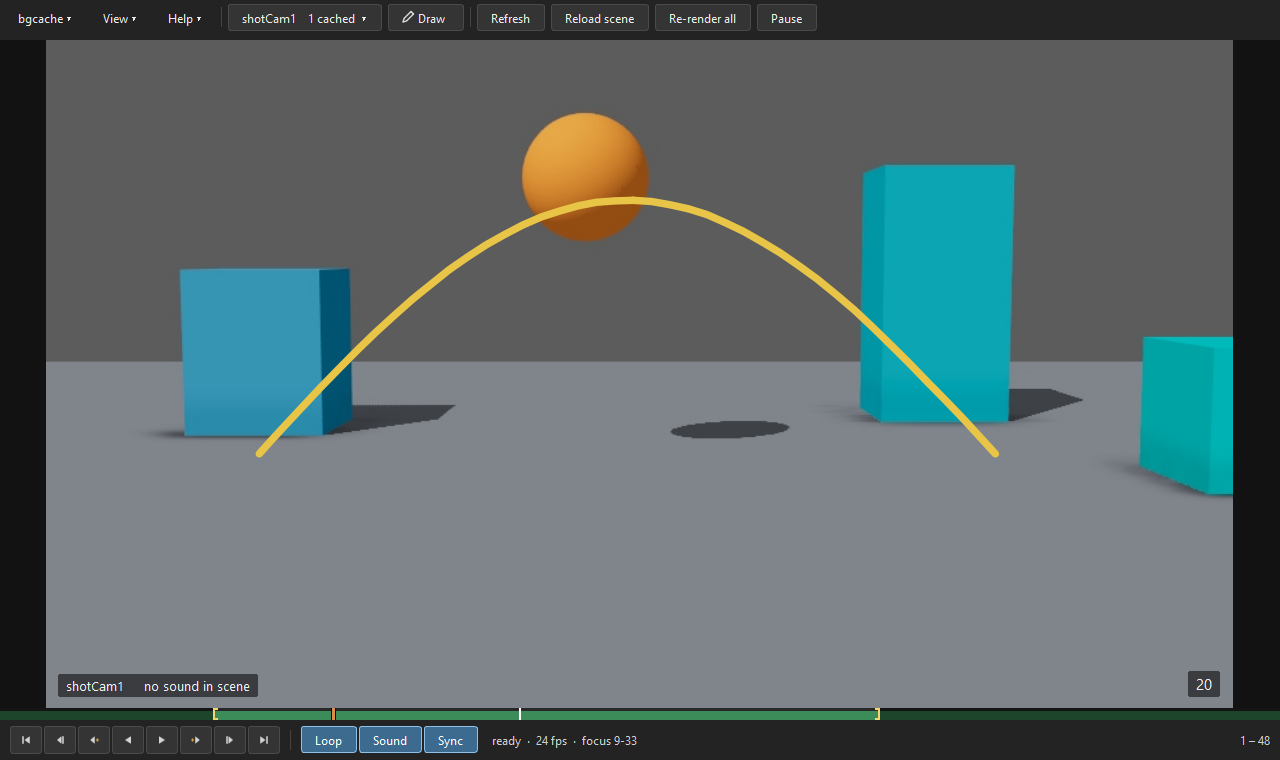
The BGCache player: a toolbar with bgcache, View and Help menus, Camera, Draw, Refresh, Reload scene, Re-render all and Pause; a cached frame of a bouncing ball between blocks; the cache bar and playback buttons below.
Key edit on frame 17Up to date
Fasterthan playblasting the whole shot again after every edit
Onlythe frames your edit changed get re-cached, the one you're on first
0times your scene file is saved or changed

How it works

Three programs on your own computer, passing small files to each other. No network, no server, and your scene file is never saved.

Your Maya

You animate as usual

Your Maya watches your key edits and sends just the changed curves when you let go of the mouse.

Player

The player plays it

A separate window plays the cached frames at full speed with sound, and follows your Maya's time slider and hotkeys.

Made for how animators work

Three things, and you use them all the way through the shot.

01 · Live playback

Playblast without playblasting

Every edit plays back in real time, so you're always looking at the real timing. That's where spline and polish get their power: every small tweak, seen at speed straight away.

  • Focus range: drag the handles or press I and O to cache just the section you're on, and Play loops it
  • The frame you're on re-caches first
  • Your time slider's sound, in sync
The cache bar with yellow focus handles around frames 9 to 33; the status line reads focus 9-33.
02 · Drawing

Draw over it, and swap drawings with Maya

One drawing tool for the whole shot, right over the moving picture.

  • Blocking: ideas and stronger poses
  • Polish: arcs, spacing, overlap and smears
  • Notes: make them, bring in other people's drawings, and keep a saved history
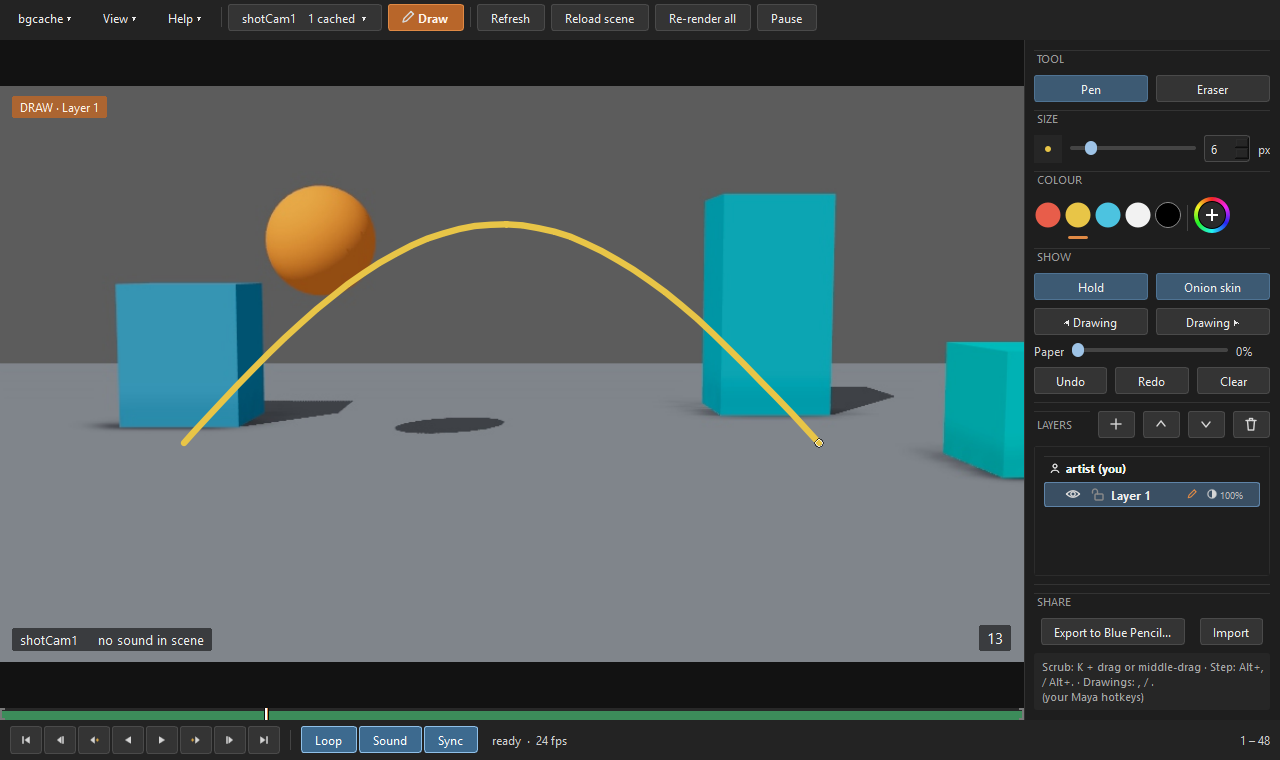
  • Round trip with Maya: export to Blue Pencil, or bring Blue Pencil drawings in over the playback
Draw mode: a yellow arc drawn over the ball's path, with the drawing strip of tools, colours, layers and Blue Pencil export on the right.
03 · Continuity Full edition

See it in the cut

Your shot plays between the shots around it, so you can check the hookup and review it in context. Draw your notes right on it.

  • Set up continuity: show it one movie of your shot and it finds every other shot's newest version
  • Footage all over the place? Point it at folders and it searches them
  • Drop in an edit (EDL or XML) and shots follow the cut
  • For one person or a team: shared drawings and one setup

Stays out of your way

Pause while blocking
Big changes wait in red on the cache bar. Resume catches up from the frame you're on.
Your hotkeys
Step frame, step key, play and scrub, just like in your Maya.
Your scene is safe
Never saved or changed. The hidden Maya has its own preferences.
Clear warnings
It tells you when something needs you, like the graphics card running out of memory.

Where it helps

  1. BlockingPause while you make big changes. Draw ideas and stronger poses.
  2. SplineWatch every edit play live. Check the hookup in the cut.
  3. PolishLive playback for every tweak. Draw arcs, spacing and smears.
  4. ReviewNotes on the playing shot, shared or sent to Blue Pencil.

Two editions, both free

Not sure? Take Full: it does everything Simple does, and continuity stays off until you set it up. You can also move from Simple to Full later by dragging in the Full installer.

Simple

Cache, player and drawing

  • Live playback that re-caches only the frames you changed
  • Drawing over playback, Blue Pencil export
  • Focus range, Refresh, Pause, Self-test

Newest beta · then drag DRAG_ME_INTO_MAYA.py into Maya. Install steps

Full

Everything in Simple, plus continuity

  • The shots around yours play as one reel with your live shot
  • Set up continuity finds your film's footage from one movie
  • Follows the cut from an EDL or XML; works for teams
  • Movies need ffmpeg: if it's missing, one click downloads it

Newest beta · then drag DRAG_ME_INTO_MAYA.py into Maya. Install steps

Install in a minute

It installs as a Maya module in your own Maya folder and never edits userSetup.py or Maya.env.

  1. Download the zip for your system from Releases, Simple or Full, and unzip it.
  2. Drag DRAG_ME_INTO_MAYA.py (the only file to use) into a Maya viewport and choose Install. No restart needed.
  3. Click the new bgcache shelf button. Pick a camera and it starts caching. Full edition: click Continuity and show it one movie of your shot.

To update, drag the new version's installer in the same way (your old copy is kept). The same installer also uninstalls.

Maya
2024 and later (tested on 2024, 2025 and 2027)
Systems
Windows, Linux, macOS (Apple Silicon; the least tested so far)
Memory
Enough for a second Maya with your scene open
Licence seats
On network licences, ask your IT whether the hidden Maya takes a seat
Free tools, made in my own time

Like it? Buy me a coffee.

BGCache is free and always will be. If it saves you a few playblasts a day, a coffee is a lovely way to say thanks, and it goes straight back into the tools.

  • Bug fixes and updates
  • Features you ask for
  • Shot Transfer
  • Reference Editor
Buy me a coffee on Ko-fi

More tools on the way

The same idea behind each one: less waiting, more animating.

Beta · download

BGCache

Live playback for heavy shots, with drawing over playback. The Full edition adds continuity: the shots around yours as one reel.

Coming soon

Shot Transfer

Copy animation and constraints, prop attach setups too, from another shot's file into yours: one frame or the whole range, without opening that file.

Coming soon

Reference Editor

Bring your video reference into your shot. It finds the takes in your reference file automatically. Pick and trim the ones you want, then place them in Maya: on the shot camera, in front of or behind your character, or as free planes in the scene.